
Help
How to take a long screenshot, and answers to the questions people ask most.
Getting started
1. Add OneScroll to Control Center
- Swipe down from the top-right corner of the screen to open Control Center.
- Touch and hold an empty area, then tap Add a Control at the bottom.
- Search for OneScroll and tap Long Screenshot to add it. You only need to do this once.
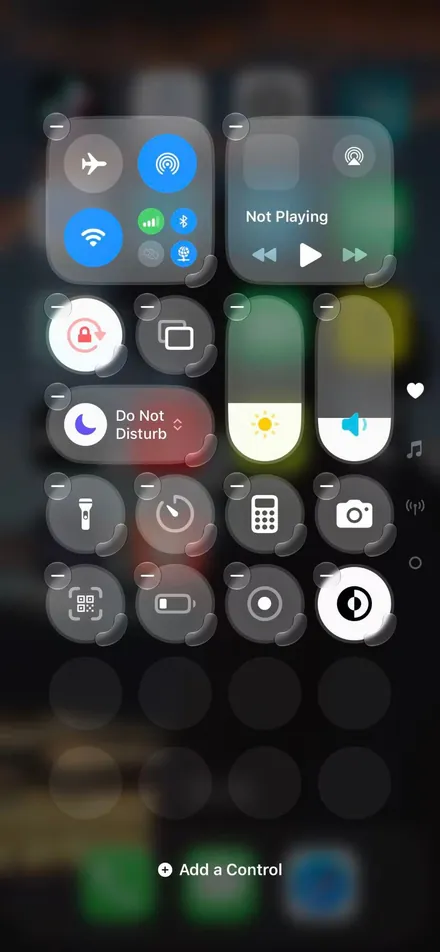
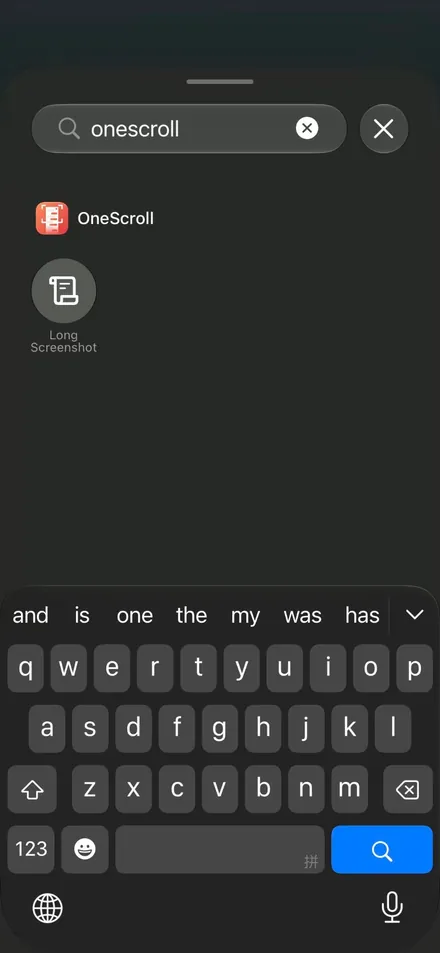
Names in Control Center are set by iOS and follow your iPhone's language. On an iPhone set to Chinese, search for 一滑长图.
2. Take a long screenshot
- Open what you want to capture and stay at the point where the image should begin.
- Open Control Center and tap Long Screenshot. (Or tap the big button in OneScroll, then switch to that app.)
- When iOS asks what to share, choose your entire screen.
- Scroll at an even pace, in one direction: down, or up if you started at the bottom. Pause briefly at the end.
- Tap the red recording indicator at the top of the screen and choose Stop. You can also tap Long Screenshot in Control Center again.
A few seconds later the long screenshot is saved to Photos, and you get a notification.
3. Crop or share
- Tap the notification, or open OneScroll and tap Last capture.
- Tap the image where you want to crop. Drag the red line into place, then choose Start here or End here. The orange lines can be dragged to fine-tune.
- Tap Save to Photos (this adds a new copy) or Share.
Something's not right
Part of the page is missing, or the image stops early
This usually means the page moved too far between two moments, for example after a quick flick. Scroll steadily at a moderate speed, in one direction, and pause briefly at the end before you stop.
If you switch to another page or app during a capture, OneScroll keeps the stretch where you scrolled the most.
It says it couldn't make a long screenshot
OneScroll didn't see the page scroll. Make sure you chose your entire screen in the sharing sheet, then scrolled within one page. Very short scrolls may not be enough.
If iOS interrupts the recording, the part captured so far is still saved.
There's no red indicator at the top. How do I stop?
In a few apps the red recording indicator doesn't appear at the top of the screen. Swipe down from the top right to open Control Center and tap Long Screenshot again. The capture stops and the image is saved to Photos as usual.
Some areas are black
Some videos and password fields record as black. That's iOS protecting them, and no screen recording app can capture them.
Videos or animations look frozen
A long screenshot is a still image, so videos and animations that play while you scroll end up as a single frame.
A notification banner ended up in the image
While you share your screen, iOS records everything on it, including notifications. Turn on Do Not Disturb in Control Center before you start.
Where are the time and battery at the top?
The status bar is trimmed by default, so the image starts with your content. To keep it, open OneScroll, go to Settings and turn on Keep status bar. It applies from your next capture. The Dynamic Island and recording indicator are always removed.
The long screenshot isn't in Photos
OneScroll needs permission to add photos. Go to Settings → Privacy & Security → Photos → OneScroll and choose Add Photos Only. Until then, the image stays in the app and is saved once you allow access.
I don't get a notification
Go to Settings → Notifications → OneScroll and turn on Allow Notifications. The long screenshot is saved either way.
I can't find OneScroll when adding a control
The name follows your iPhone's language: try both OneScroll and 一滑长图. If it still doesn't appear, open OneScroll once, then try again.
Can I scroll up or sideways?
Up, yes. Start at the bottom, for example at the newest message in a chat, and scroll up; the long screenshot still reads top to bottom. Keep to one direction in each capture. Sideways scrolling isn't supported.
Which devices are supported?
iPhone with iOS 27 or later. Capturing your whole screen while you use other apps is new in iOS 27, so earlier versions can't run OneScroll. iPad isn't supported yet.
Is anything I capture uploaded?
No. Everything is processed on your iPhone. OneScroll has no account, no analytics and no server, and it keeps only your most recent long screenshot so you can crop or share it. See the Privacy Policy.
Purchases
How much can I use it for free?
Your first 5 long screenshots are free. After that, you can unlock the full version with a one-time purchase and capture as many as you like. The price is shown in the app.
Is it a subscription?
No. You pay once. Nothing renews and you won't be charged again.
I got a new iPhone or reinstalled the app
Sign in with the same Apple Account, open OneScroll, go to Settings and tap Restore purchases.
I paid, but it's still locked
Tap Restore purchases in Settings. If the purchase is waiting for approval (for example, Ask to Buy from a parent), it unlocks automatically once approved.
Can my family use my purchase?
No, Family Sharing isn't available for this purchase.
How do I get a refund?
Purchases are handled by Apple, so refunds are too. Request one at reportaproblem.apple.com.
Contact us
Didn't find your answer, or have an idea? We'd love to hear from you.
onescroll.help@gmail.comIt helps to include your iPhone model, iOS version, the app you were capturing, and what happened. In OneScroll you can also tap Settings → Contact Us.